Quick Start Guide
Create your first tripwire in under 5 minutes and start detecting unauthorized access immediately.
Step 1: Sign In or Create an Account
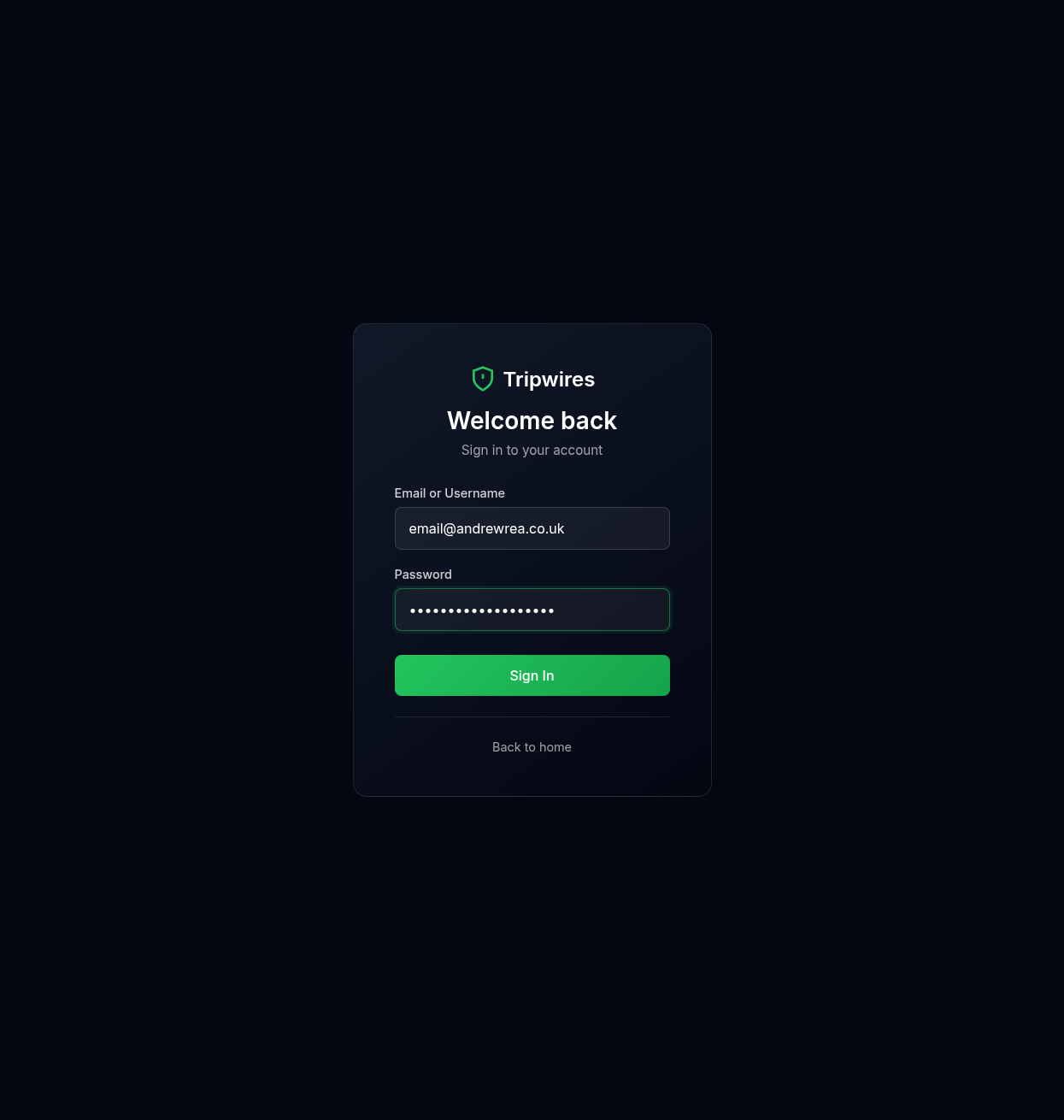
Navigate to the login page and sign in with your existing account, or create a new one to get started.
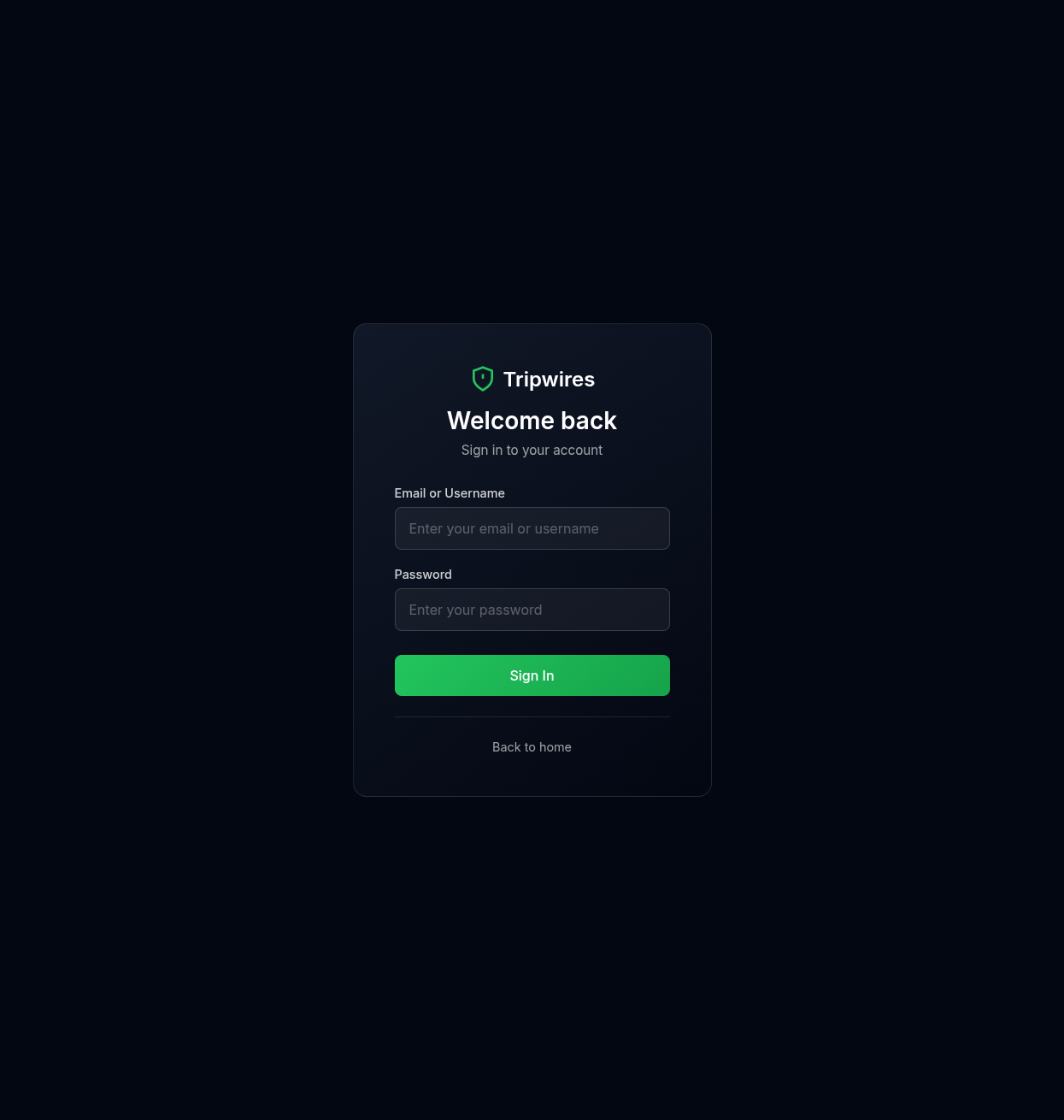
Enter your email and password to access the dashboard.
Just Want to Try It Out?
You can create free document tripwires instantly without signing up. No account required - just provide your email for alerts.
Step 2: Access Your Dashboard
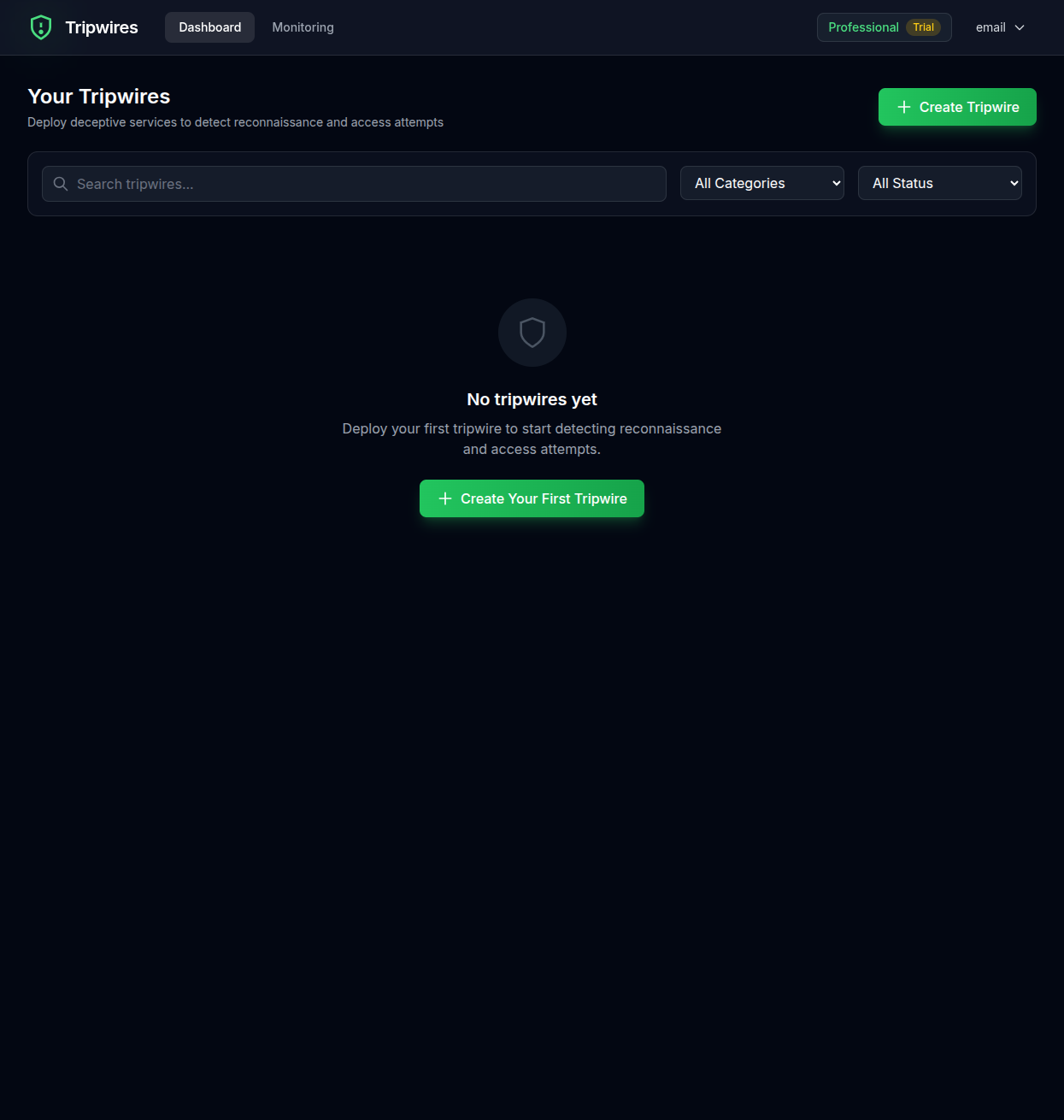
Once logged in, you'll see your dashboard. If this is your first time, it will be empty.
Step 3: Create Your First Tripwire
Click the "Create Tripwire" button in the top-right corner to open the creation page.
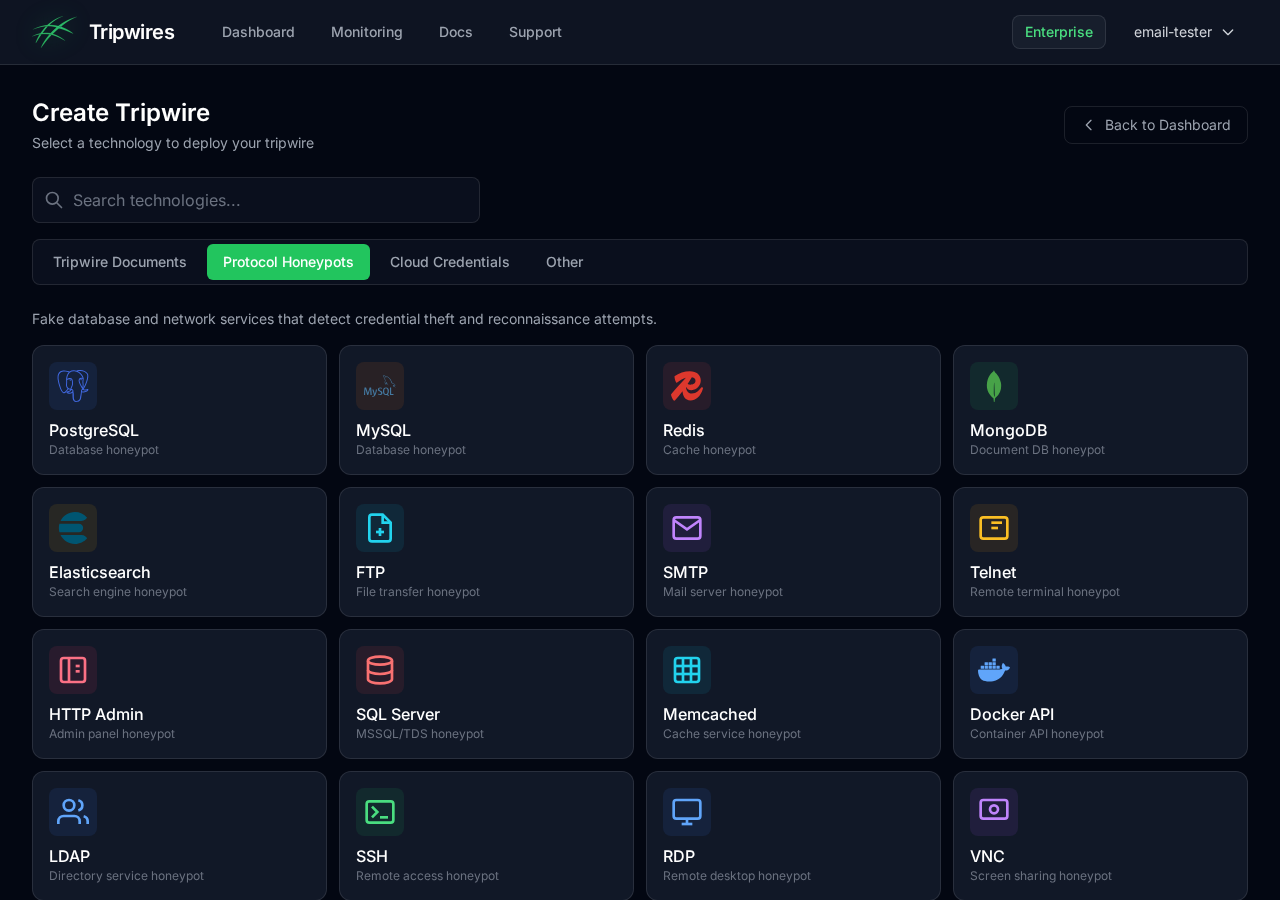
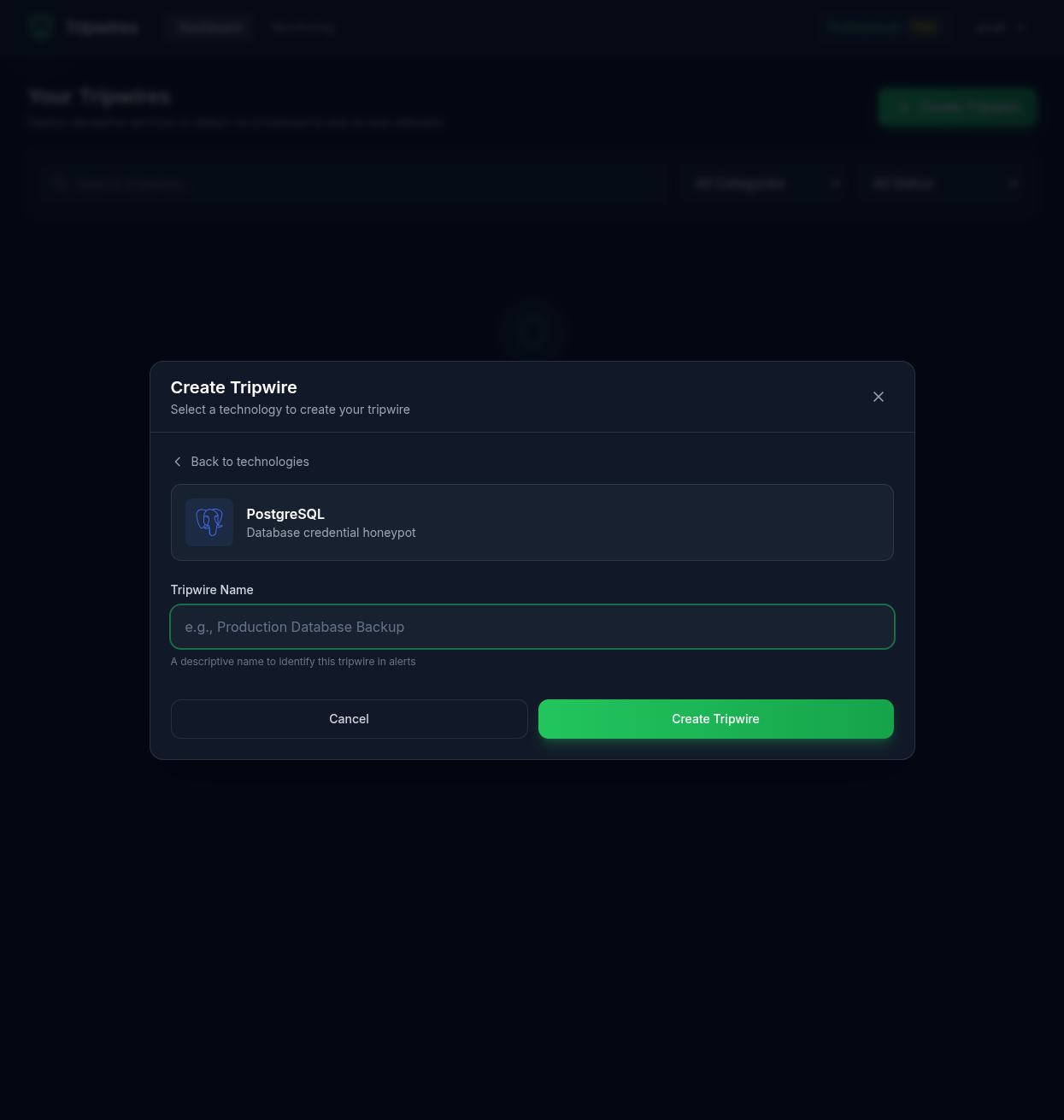
Choose a protocol type for your honeypot. We recommend starting with PostgreSQL as it's one of the most commonly targeted database protocols.
Step 4: Name Your Tripwire
Give your tripwire a descriptive name that helps you identify its purpose. For example:
Production Database- For credential files near production systemsBackup Server Creds- For backup system configurationsDev Database- For development environment canaries
Step 5: Get Your Credentials
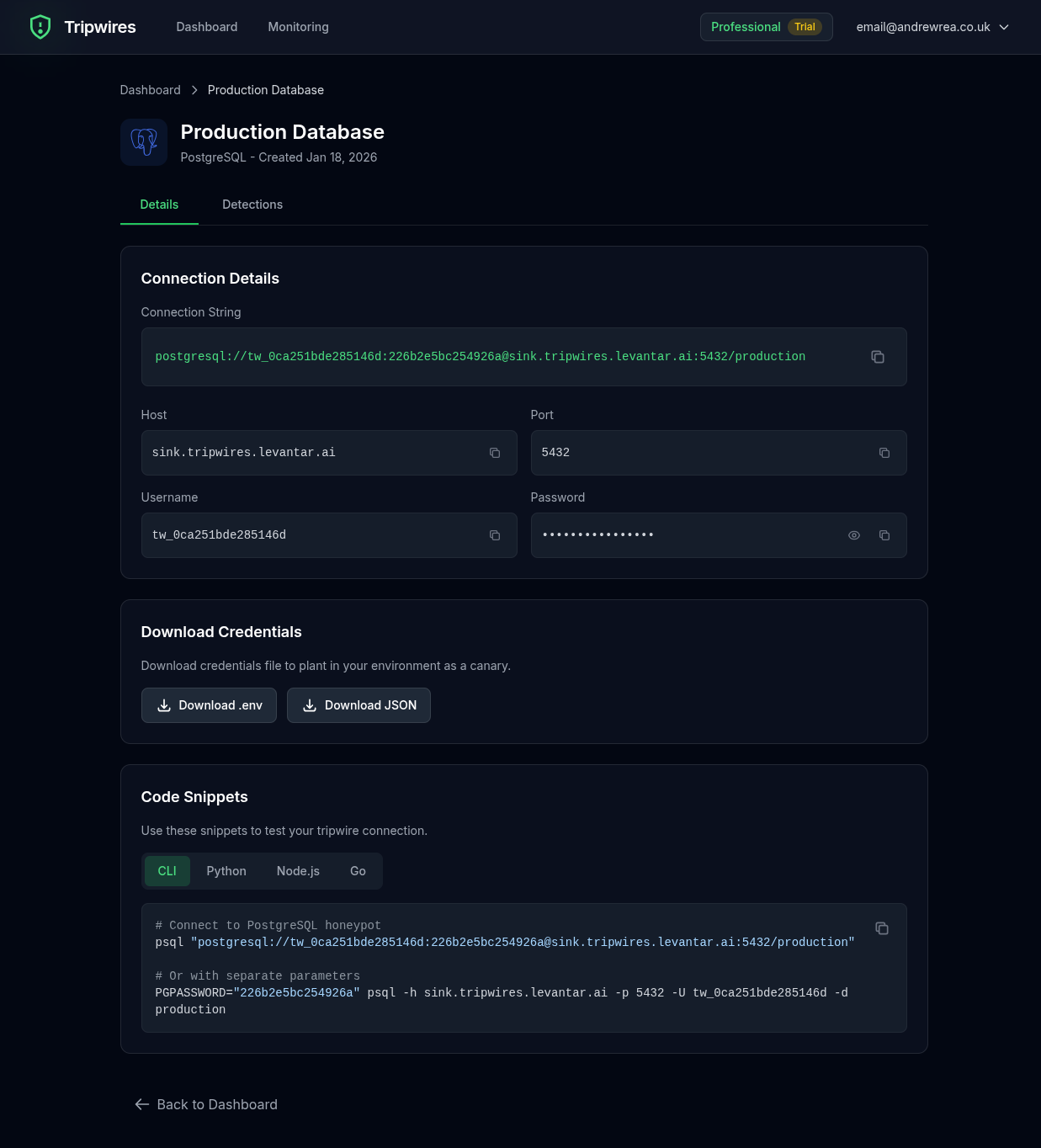
After creation, you'll see the tripwire details page with the generated credentials. These include:
- Hostname - The honeypot server address
- Port - The protocol port
- Username - A unique, randomized username
- Password - A randomly generated password
Step 6: Plant the Credentials
Now comes the important part: placing these fake credentials where an attacker might find them. Some strategic locations include:
Configuration Files
# config/database.yml (commented as "old production")
# DEPRECATED - DO NOT USE
# production_old:
#   host: pg-abc123.gettripwires.com
#   port: 5432
#   username: prod_user_xK9mP
#   password: Rk47!nQz@9vLm3Wp
Environment Files
# .env.backup (left in repository)
DB_HOST=pg-abc123.gettripwires.com
DB_PORT=5432
DB_USER=prod_user_xK9mP
DB_PASS=Rk47!nQz@9vLm3Wp
Internal Documentation
Add to internal wikis or documentation as "legacy" or "backup" credentials.
Step 7: Monitor for Detections
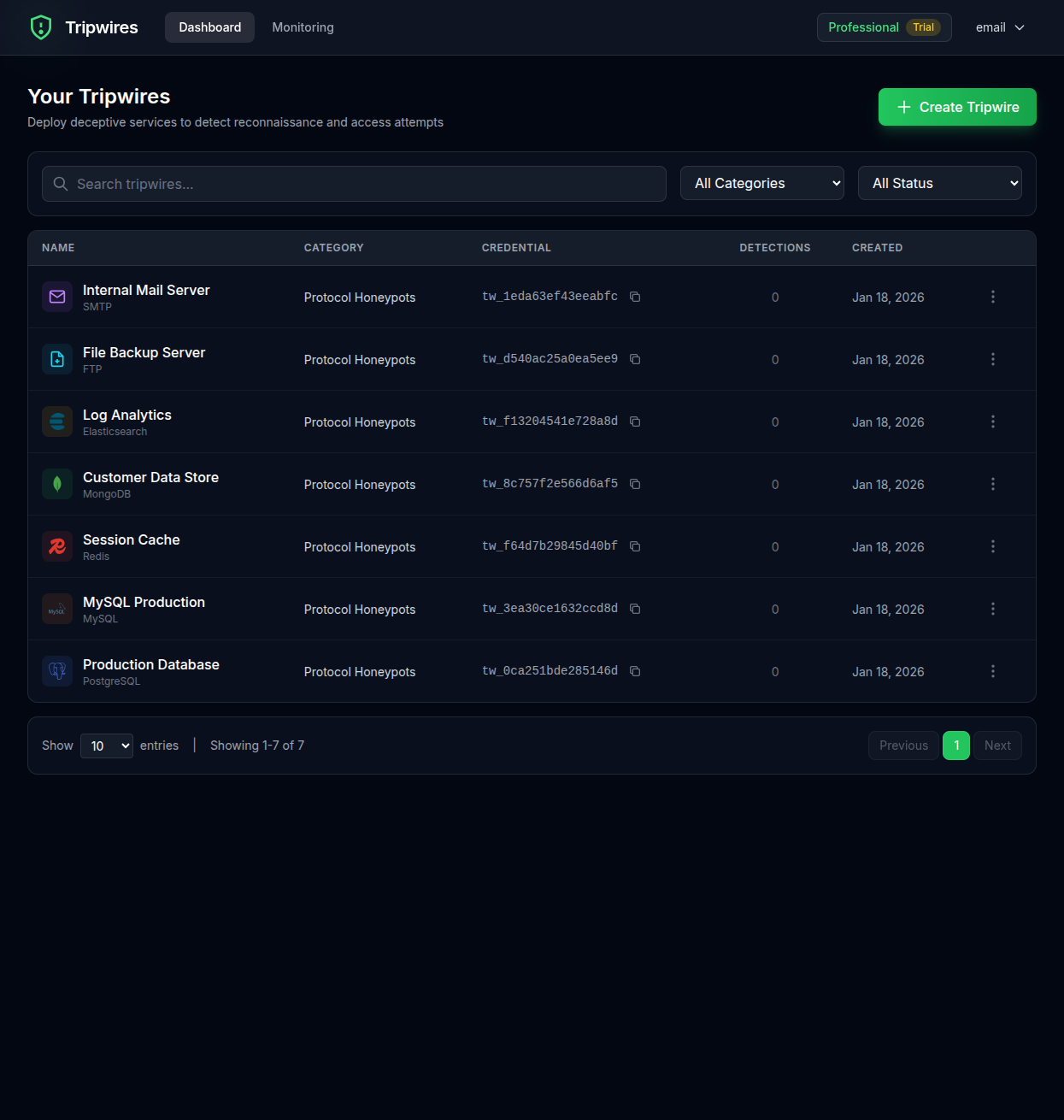
Return to your dashboard to see all your tripwires. When someone attempts to use the planted credentials, you'll receive an instant alert and the detection will appear in your dashboard.
You're All Set!
Your first tripwire is now active. Any connection attempt using these credentials will be logged and trigger an alert. Continue to the Dashboard guide to learn about managing your tripwires.