Tripwire Details
Understanding the tripwire details page and how to use the generated credentials.
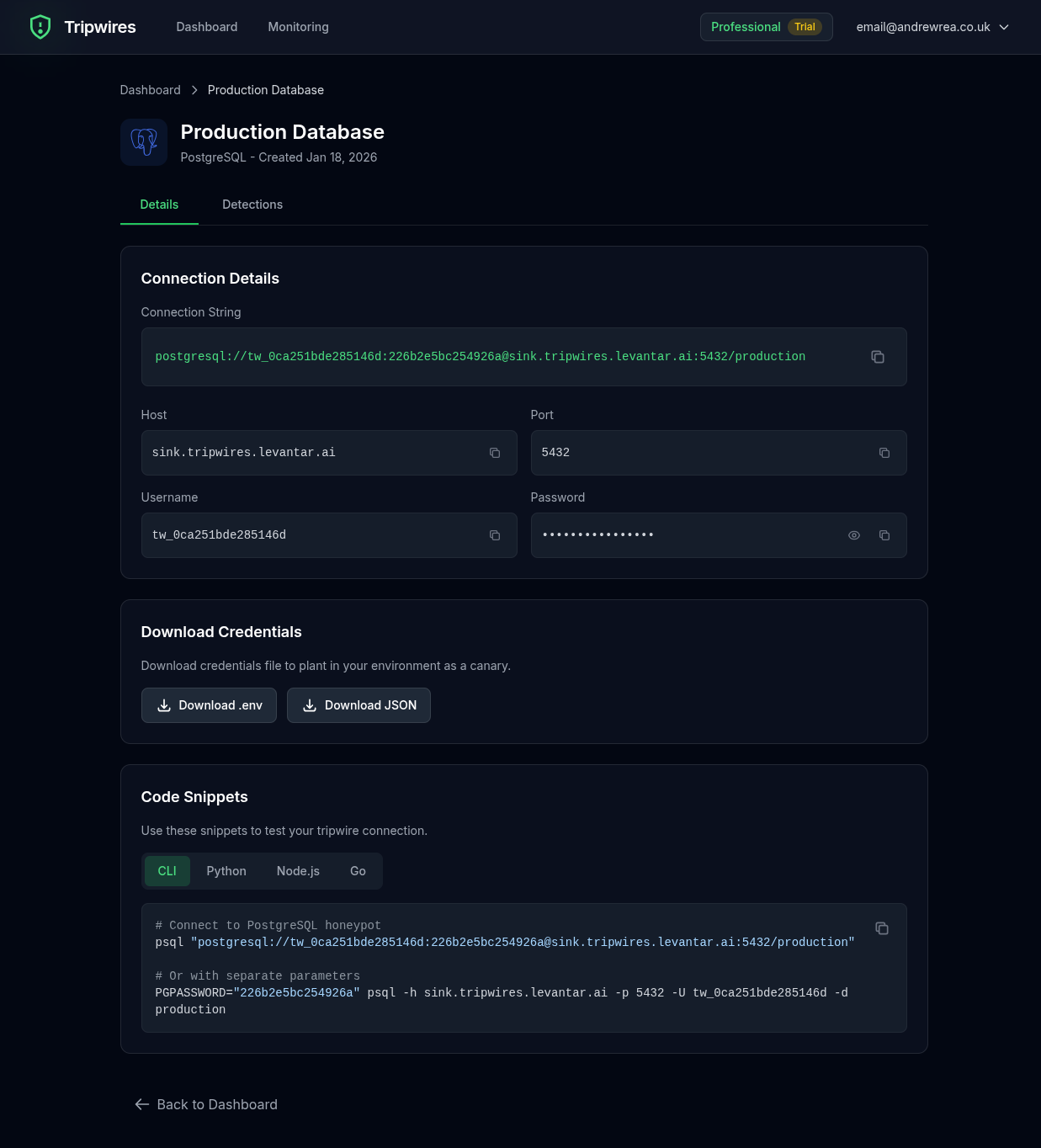
Credentials Section
The details page displays all the information you need to plant the tripwire credentials:
| Field | Description |
|---|---|
| Hostname | The unique honeypot server address (e.g., pg-abc123.gettripwires.com) |
| Port | The standard protocol port (e.g., 5432 for PostgreSQL) |
| Username | A randomly generated, realistic-looking username |
| Password | A randomly generated secure password |
| Database | A database name (for protocols that use databases) |
Connection Strings
The details page provides ready-to-use connection strings that you can copy and plant directly. These are formatted for common tools and libraries:
PostgreSQL Example
postgresql://prod_user_xK9mP:Rk47!nQz@9vLm3Wp@pg-abc123.gettripwires.com:5432/productionRedis Example
redis://:SecurePass123@redis-xyz789.gettripwires.com:6379Copying Credentials
Each credential field has a copy button that copies the value to your clipboard. The connection string section also has a copy button for the full URL.
Detection History
Below the credentials, you'll find a history of all detections for this tripwire. Each detection shows:
- Timestamp - When the connection attempt occurred
- Source IP - The IP address that attempted the connection
- Username Attempted - The username used in the connection attempt
- Additional Details - Protocol-specific information captured during the attempt
Tripwire Documents
For tripwire documents (Excel, Word, Kubeconfig, database dumps, etc.), the details page shows:
- Download Button - Download the tripwire document file
- File Type - The document format (XLSX, DOCX, etc.)
- Tracking URL - The embedded beacon URL that triggers on open
Place these documents in locations attackers might find them: shared drives, backup folders, or "confidential" directories.
Cloud Credentials (AWS)
AWS tripwire credentials show the following information:
- Access Key ID - The AWS access key identifier
- Secret Access Key - The corresponding secret key
These credentials can be planted in .aws/credentials files, environment variables, or CI/CD configurations. When an attacker attempts to use them with AWS APIs, you'll be alerted immediately.
QR Codes
For QR code tripwires, the details page provides:
- QR Code Preview - Visual preview of the QR code
- Download Button - Download the QR code as a PNG image
- Print Button - Print the QR code directly
- Beacon URL - The URL encoded in the QR code
Print and place QR codes on physical assets like server room doors, equipment, filing cabinets, or sensitive documents. When someone scans the QR code with their phone, you'll receive an alert with their IP address and user agent.
Where to Plant Credentials
Strategic placement of credentials increases the chance of catching attackers. Consider these locations:
Configuration Files
Add as commented-out "old" or "backup" credentials in config files like .env, config.yml, or database.yml.
Code Comments
Leave as "temporary" credentials in code comments that appear to have been forgotten.
Internal Documentation
Add to internal wikis or runbooks as "legacy system" credentials.
Backup Files
Include in backup scripts or .bak files that might be discovered during reconnaissance.
Managing Tripwires
From the details page, you can:
- Delete - Remove the tripwire permanently (cannot be undone)
- Copy credentials - Quick copy of connection strings
- View detections - See full history of all triggered alerts
Next Steps
Learn more about specific protocol honeypots in the Protocol Honeypots section.